Menu
Are you running Performance Max or Google shopping campaigns and aren’t sure how to improve performance, given the lack of levers to pull?
We see many managers focusing on campaign or ad group/asset group level optimizations – some of the more common optimizations we see aim to:
However, managers often overlook the opportunities available to them when optimizing individual product performance within Google Shopping Ads campaigns.
There may be tens of thousands of products in the account so the sheer weight of data can become overwhelming, with the opposite also often being simultaneously true; there is often a lack of data at the individual product level. Add to that the fact that many shopping campaigns are selling multiple different products at different price points (therefore difficult to compare the performance of vastly different products against each other) and it quickly becomes a big messy pool of data that many managers understandably shy away from!
To solve this problem, we’ve put together a 6-step guide to help you navigate through this spaghetti bowl of data so you can quickly identify which products should be axed and which you could focus more effort on promoting. This also works perfectly for Microsoft (Bing) Ads!
The performance of any given individual product in your account may only be a small contributor to overall campaign performance, but it’s vital to the health of any e-commerce account as many small leaks or missed opportunities can quickly add up.
For example, if you have products that are disapproved or expired then you won’t make any sales at all on them because the ads just won’t show. So it’s important to identify those quickly.
You will almost certainly also have products in the category that sell well, and others that don’t. The tricky part is spotting the ones that have a very high return on ad spend (ROAS) (AKA conv value/cost) or cost you money but don’t convert well, so you can remove them from the campaign (e.g. men’s size 15 socks probably don’t sell anywhere near as profitably as size 10!)
Product performance is the framework on which everything else is built, yet is the most overlooked optimization.
As you know, ensuring your products stay approved (and live) is critical when managing Shopping Campaigns. If your products aren’t available to show, then you’ll never achieve the results you want.
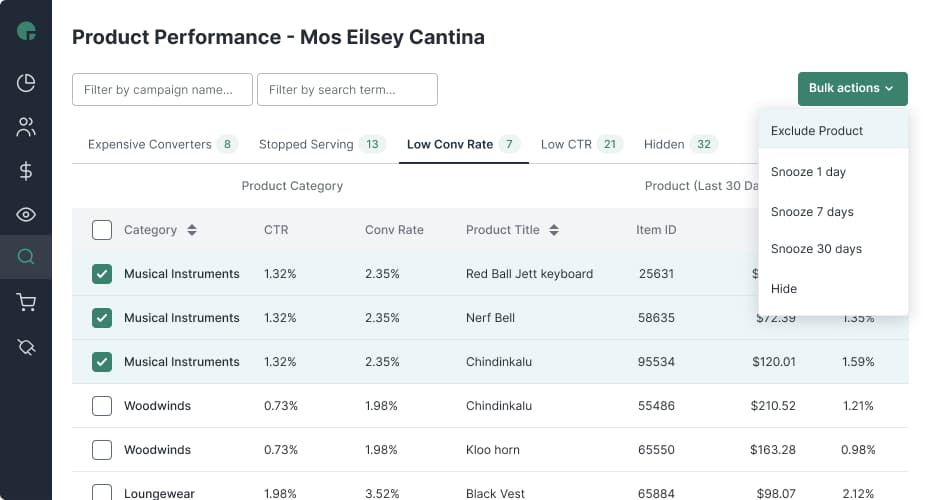
At Adpulse, we’ve made it easy to know which products have been disapproved or expired without needing to sign in to Google Merchant Center. Simply check the “Products” tab in Adpulse to find the product category, item ID, and more. We offer an at-a-glance dashboard where you can evaluate multiple accounts, saving time and allowing you to act quickly.
Need to know more about product disapprovals or violations? Review the Item Disapproval Google support document.
Nothing’s worse than spending good money on products that don’t convert. Don’t hold onto those products like the 10-year-old shirt in the back of your closet! Spending money here just takes budget away from products that actually convert. Trust us. You won’t miss them.
When you exclude these products, your ROAS improves because you’re focusing your budget on more effective SKUs.
The Adpulse “Expensive Non-Converters” tab calls these products out and shows cost over the last 30, 60, 90, 180, and 365 days, so you know how much this product has cost you over time. You can skip the data dive and make strategic changes in minutes.
Sometimes your products convert, but they don’t contribute positively to your account’s goals. Review the ROAS over time to see the trends. Has ROAS improved or deteriorated? Was there a time when this product performed well? Has anything changed?
If these items are important to your bottom line, you may want to move them to another campaign and designate a budget, bids or strategy that makes sense for them. Then, run ads with a separate budget for those with a better ROAS. Then you can optimize and target these separately, using differing goals and campaign organization to improve account ROAS.
Adpulse can help with this too. Within your product dashboard, you can see ROAS over time. You can also review the cost and number of conversions for a particular product. This tab will enable you to make smart decisions about which products to keep and which to exclude.
When ads don’t serve, you’ll want to troubleshoot. If ads aren’t serving for specific products or SKUs but that SKU is approved, it can signal a problem. Ensure your products are approved, in stock, and optimized in the Merchant Center. You could also have budget issues preventing ads from showing for every product.
Getting to the bottom of why your ads aren’t serving will guide your next steps. Remember, no ads, no sales!
With our Stopped Serving Ads tab, you can see which products don’t have currently serving ads. You’ll love this feature! It saves hours of creating reports, filtering, and troubleshooting.
Low conversion rates signal you may have a problem with stock levels (e.g. we only have size 15 socks left in stock but everyone wants size 10) or there could be a problem on the product page itself (buy now button not working, or conversion tracking broken for example). When you identify these products, you can decide whether to exclude them or make other changes based on the data.
When you see an unexpectedly low conversion rate, start digging into your website and product pages. Examine each aspect of the process once a user lands on your website as that’s usually where the answer lies.
Weeding out the low-conversion lemons and/or fixing your product pages will improve your conversion rates, cost per acquisition, and your ROAS.
A low click-through rate indicates your product or ad just isn’t hitting home with your audience.
Working through low click-through rates will help you improve ROAS and conversions.
Being able to single out low click-through SKUs and make meaningful changes will put you light years ahead of the competition.
Management tools should be just that. Some Google Shopping Management software platforms let you edit and create Product Groups, but few if any, allow you to analyze and make changes at the product level.
Adpulse:
With Adpulse, you can optimize your campaigns in minutes, not hours. Our new features will help you maximize ROAS and scale even your largest accounts, and Adpulse works with both traditional and Performance Max campaigns!
By taking a deeper look into your product performance, you’ll stop struggling with account optimization and start scaling your profits. Stop asking yourself how to optimize your Google Shopping Ads and start using the new Adpulse features today!
We love talking PPC and Shopping, so if you have a question please do drop us a line!
Also, Adpulse comes with a 14-day free trial, and right now the first month is only $19/99/mth, so it’s a low-risk way to try it for yourself. Sign up now!